UC2 · Site infrastructure: domain, email, roles, accounts
After self-signup, lock down the site's foundation: bind your domain, configure mail sending, define roles, and provision admin accounts for your team.
UC1 gets you a working backoffice. UC2 turns that backoffice into
something you can hand to a team and serve real players from.
What you'll configure
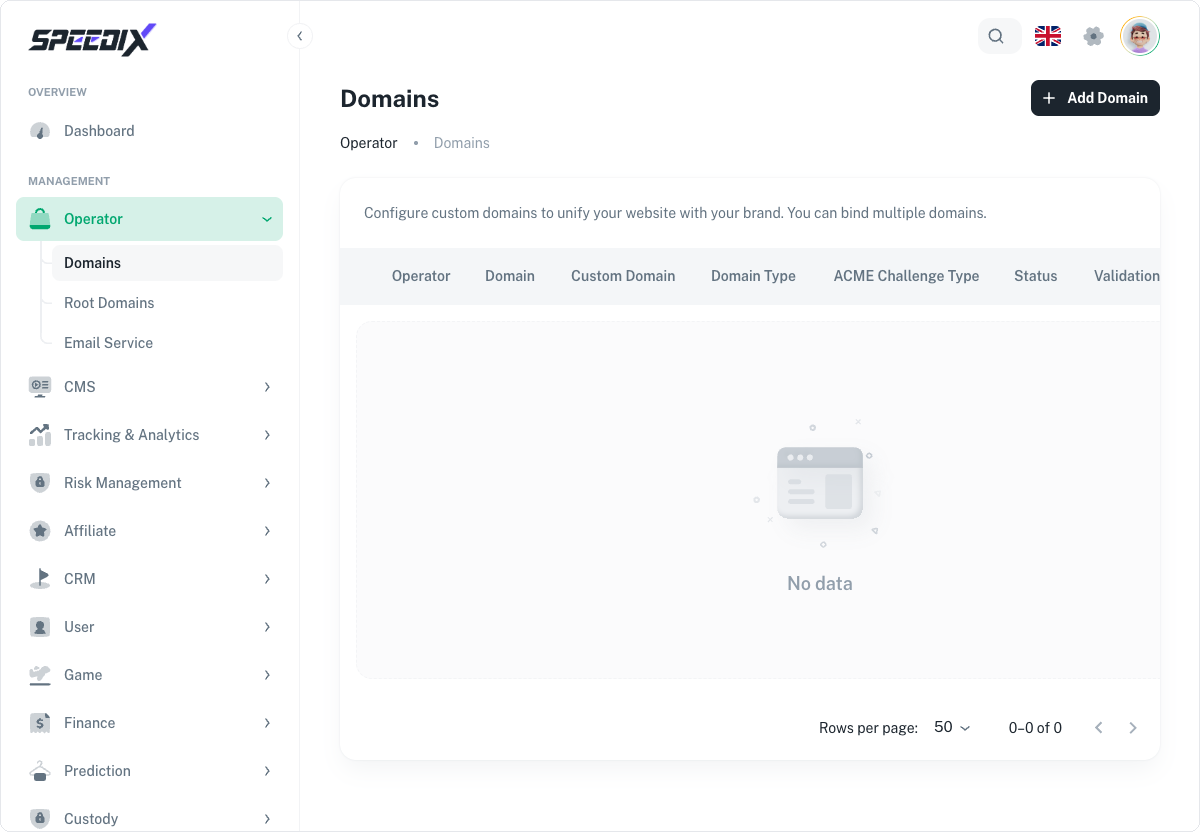
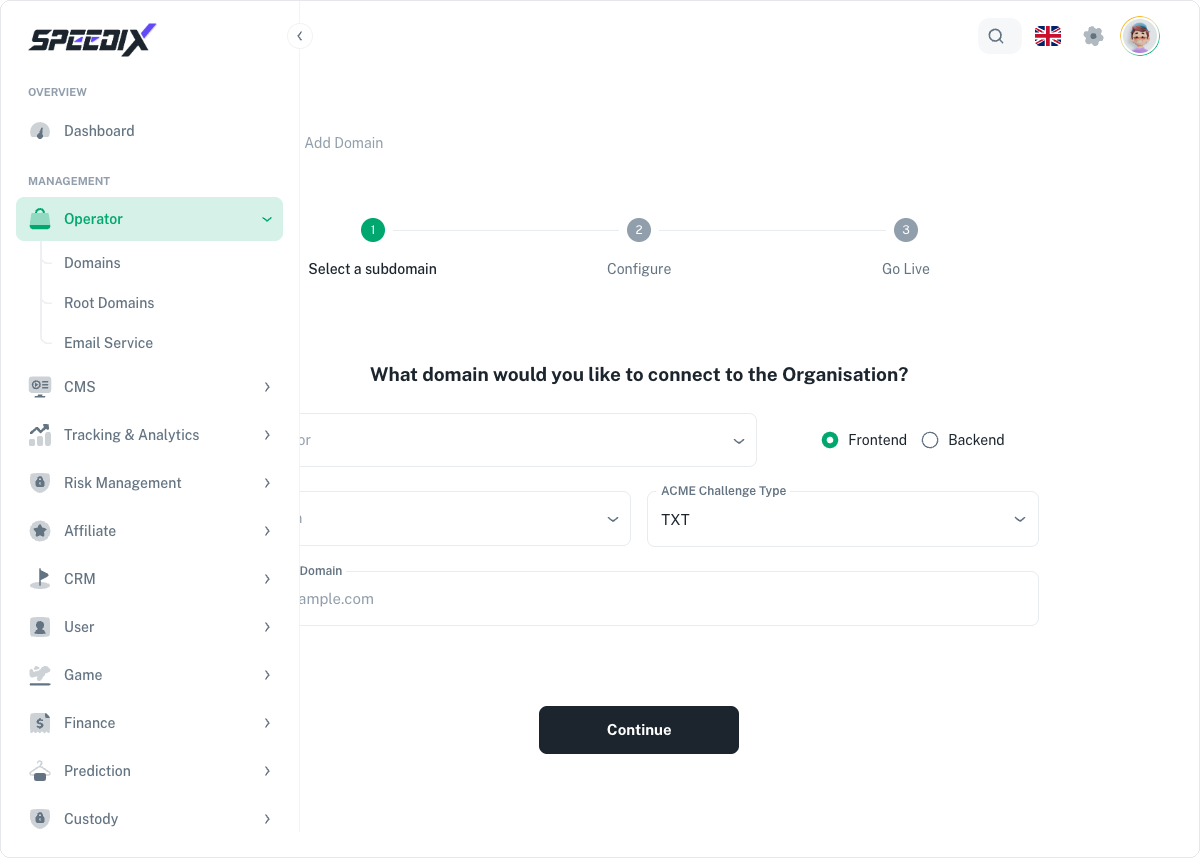
Custom domain. Map your brand domain (e.g. play.yoursite.com)
to the Operator. Cloudflare Custom Hostname under the hood —
no apex-nginx, no A records. Players see your brand, not ours.
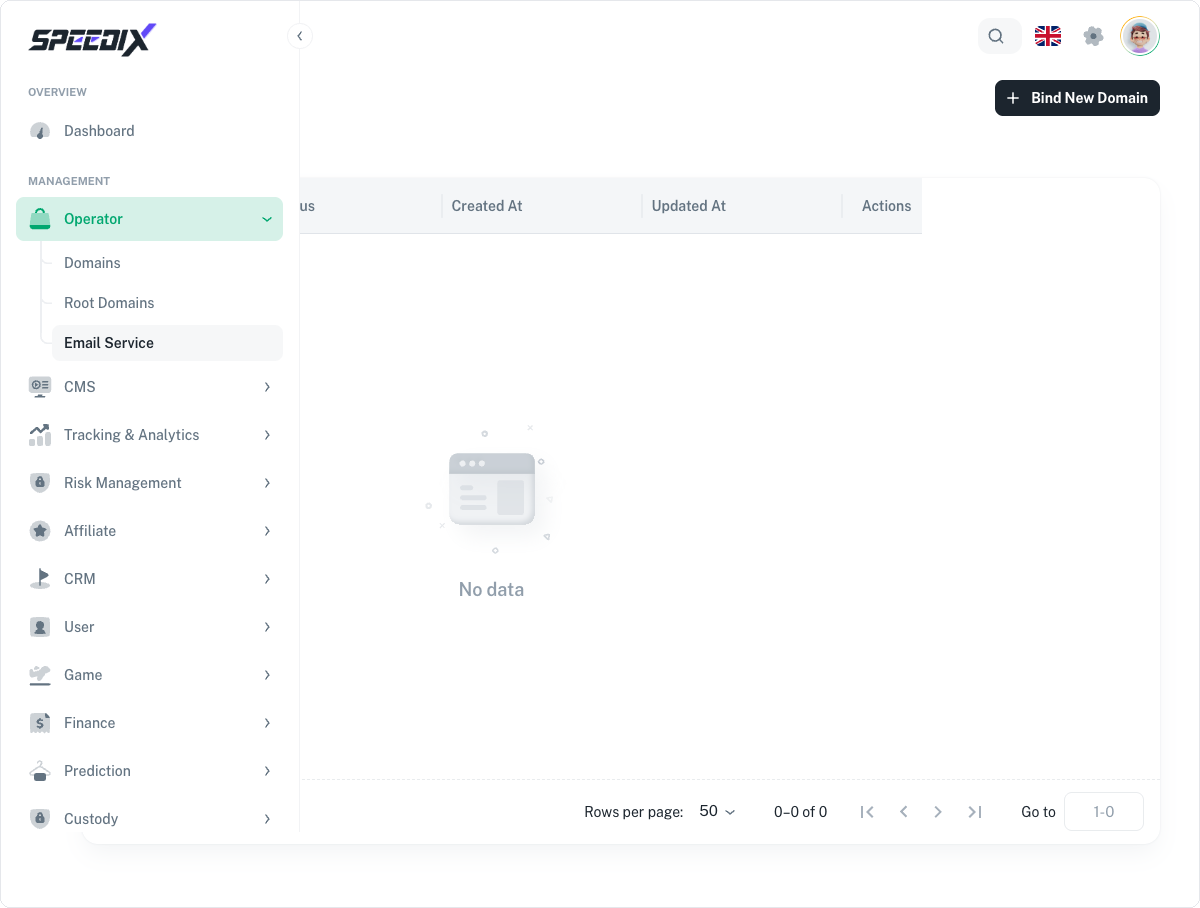
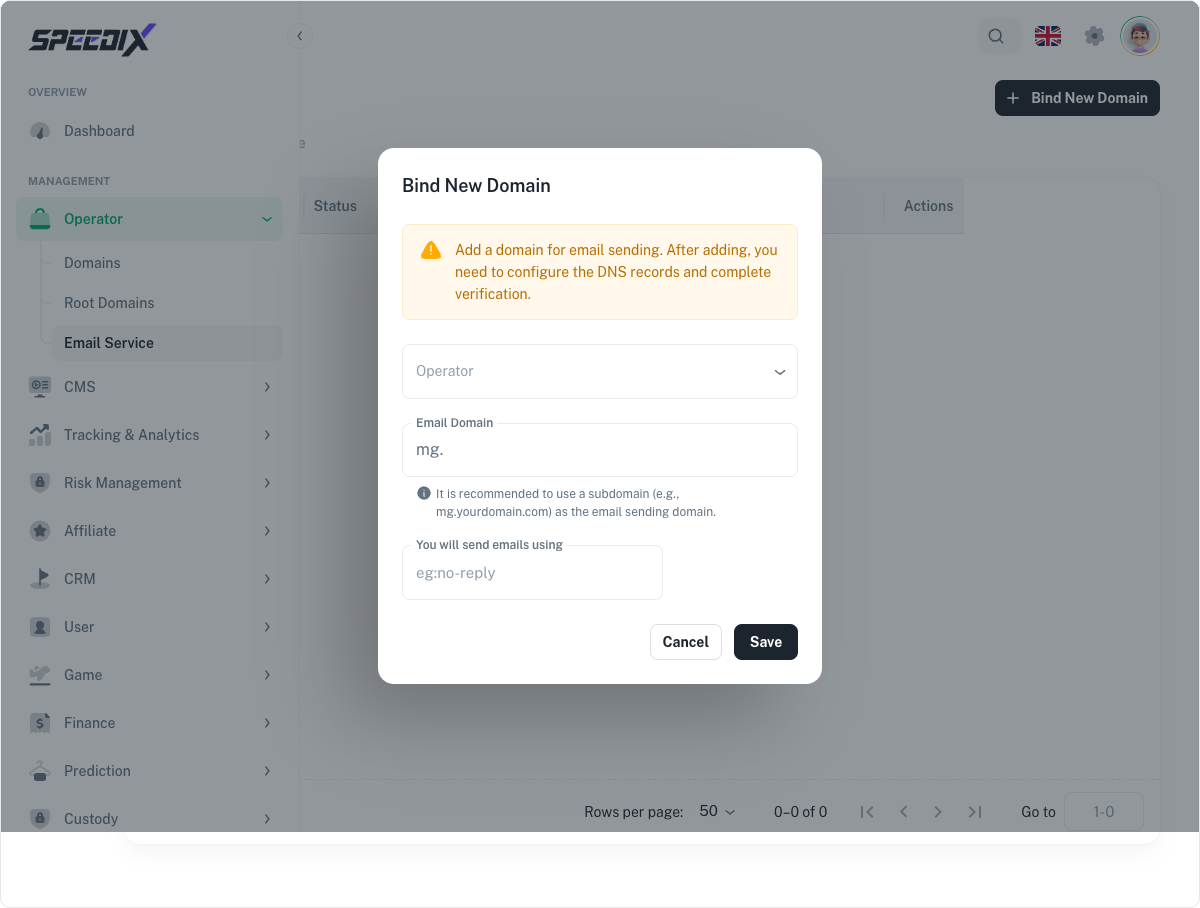
Email sender. Bind the outbound mail sender for transactional
emails (account verification, withdrawal confirmation, deposit
receipts). DKIM/SPF/DMARC walkthrough included.
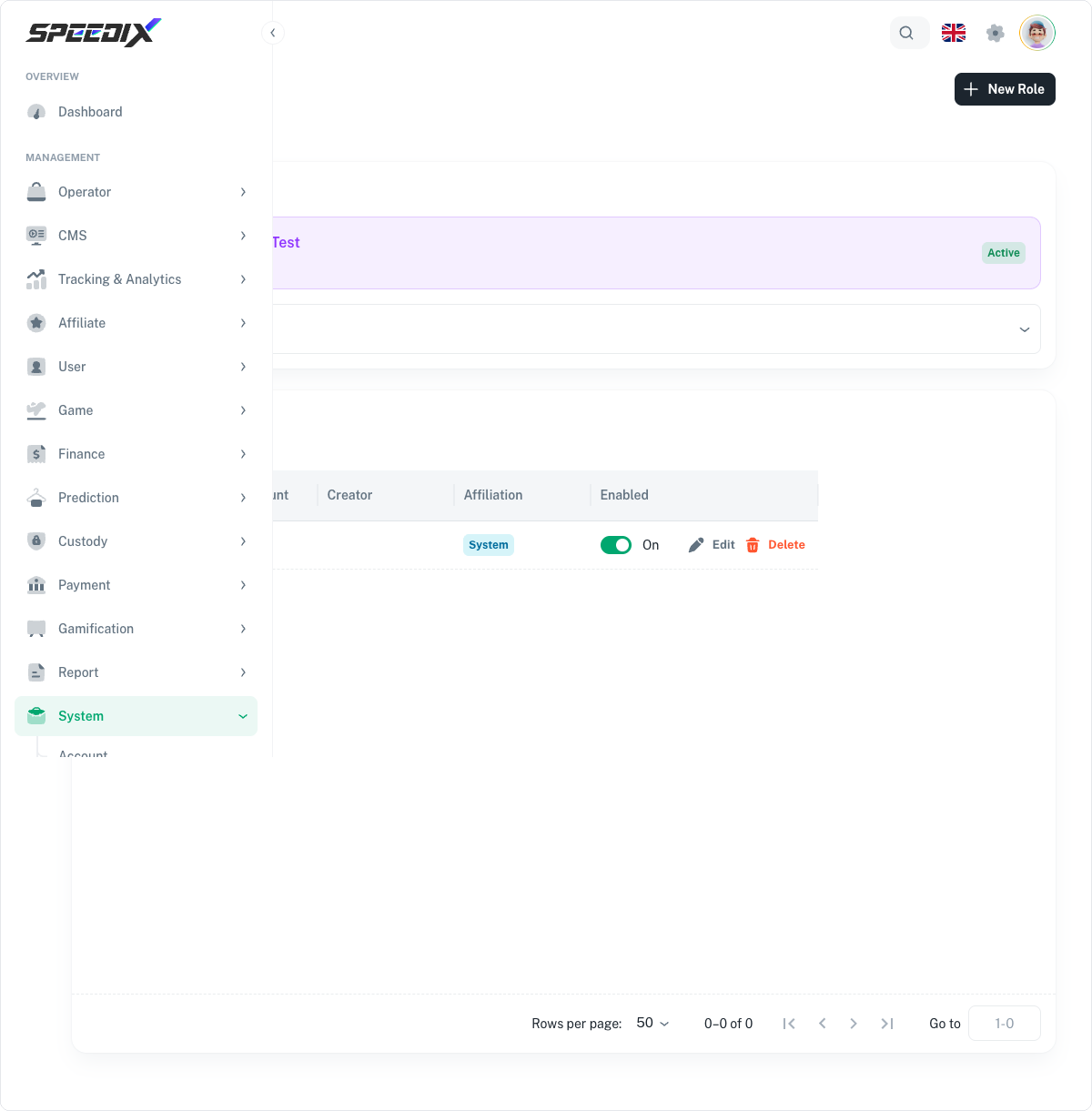
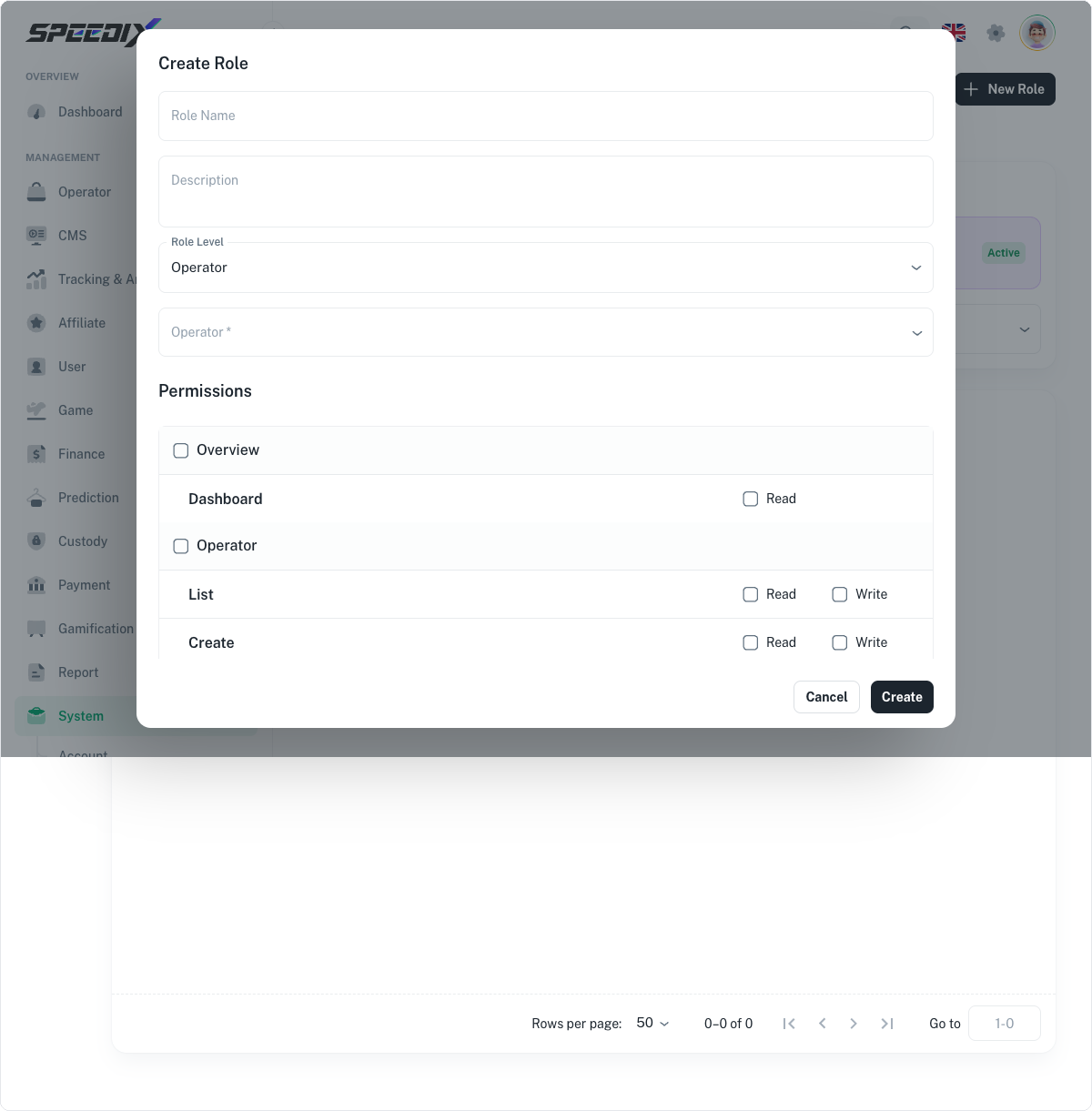
Role definitions. RBAC roles for finance, support, marketing,
ops. Each role gets a scoped permission set so the support team
can't approve withdrawals and finance can't edit CMS copy.
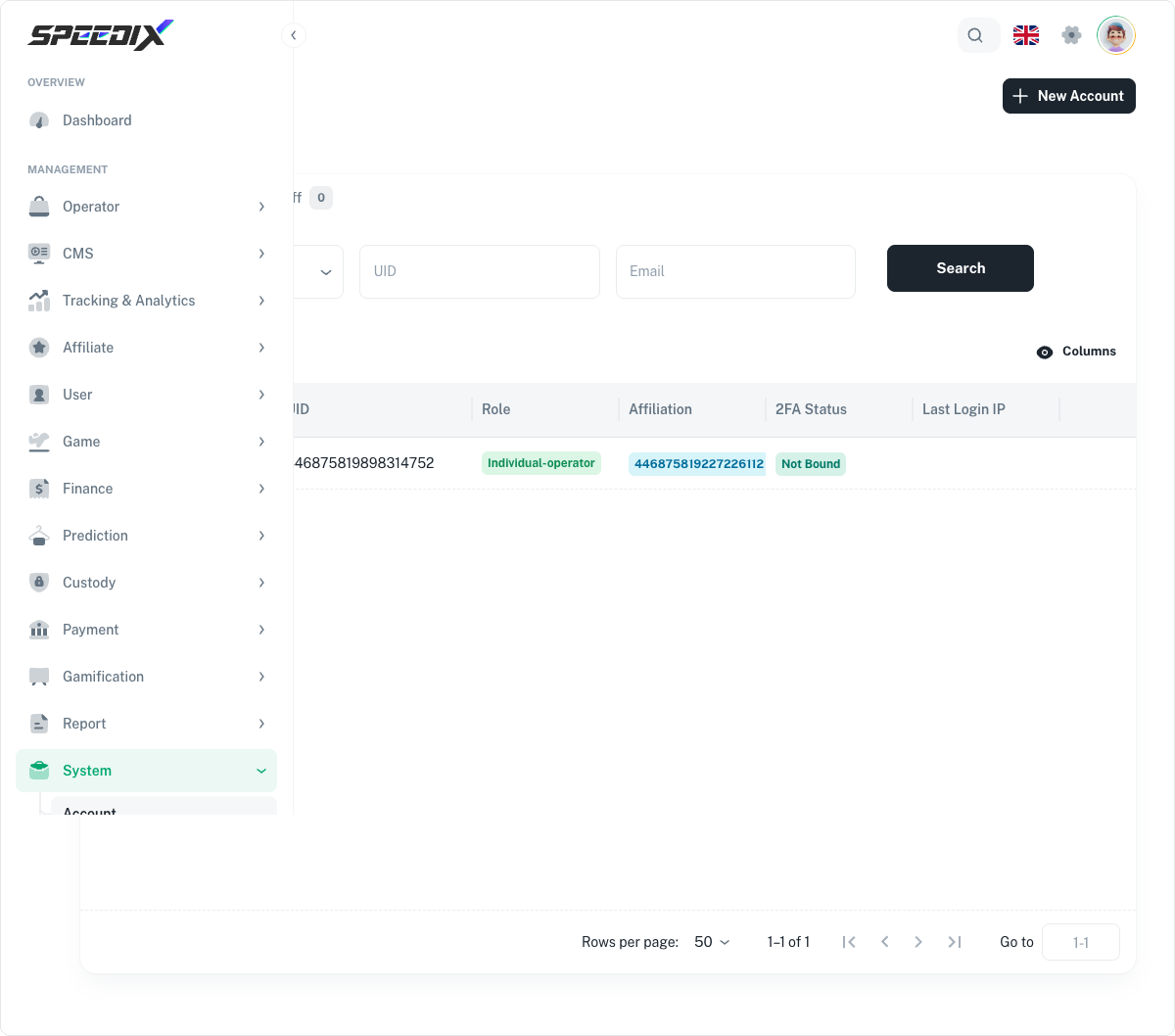
Admin accounts. Invite-by-email flow with 2FA enforcement
and audit-logged session history.
Full playbook
Open the original guide for the complete field reference, DNS
provider walkthroughs (Cloudflare / Route53 / Namecheap), and the
"common mistakes" debrief.
Screenshots
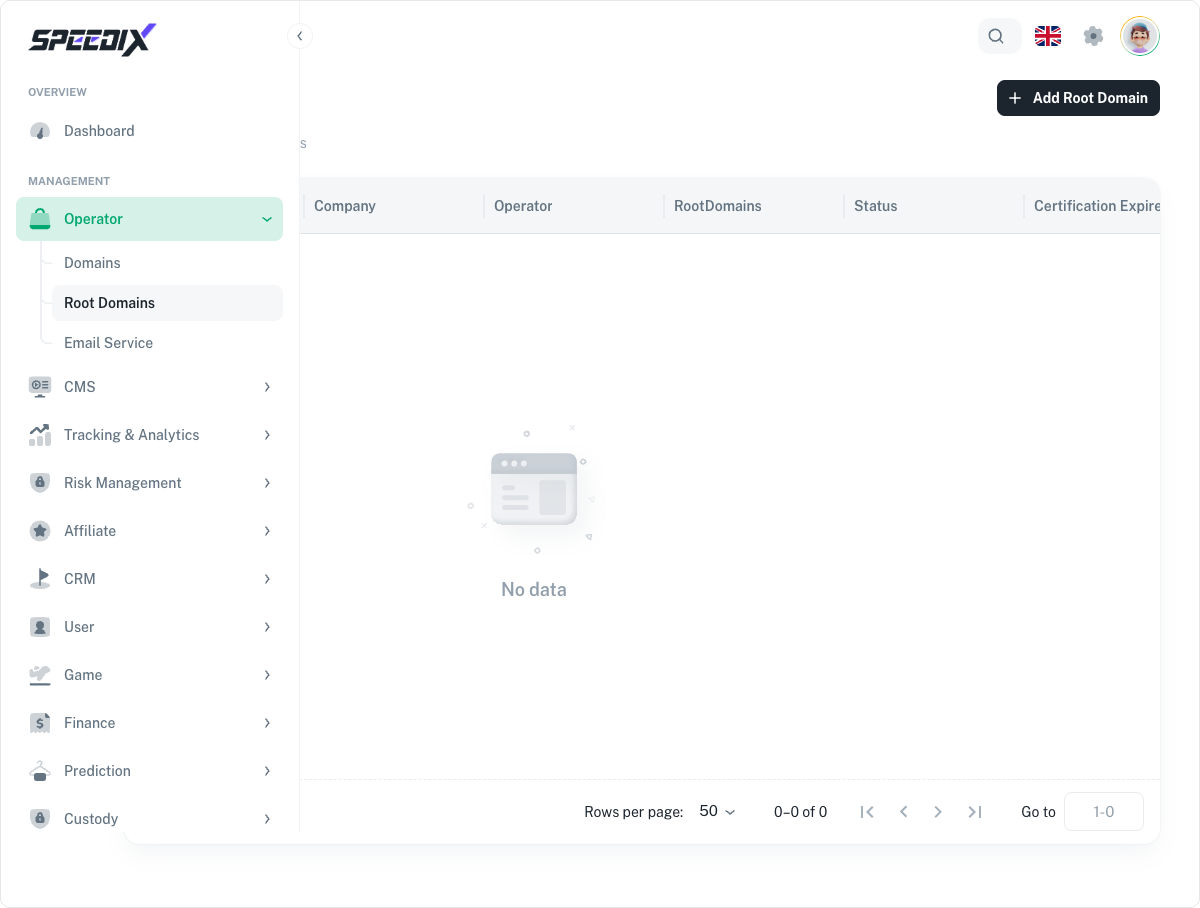
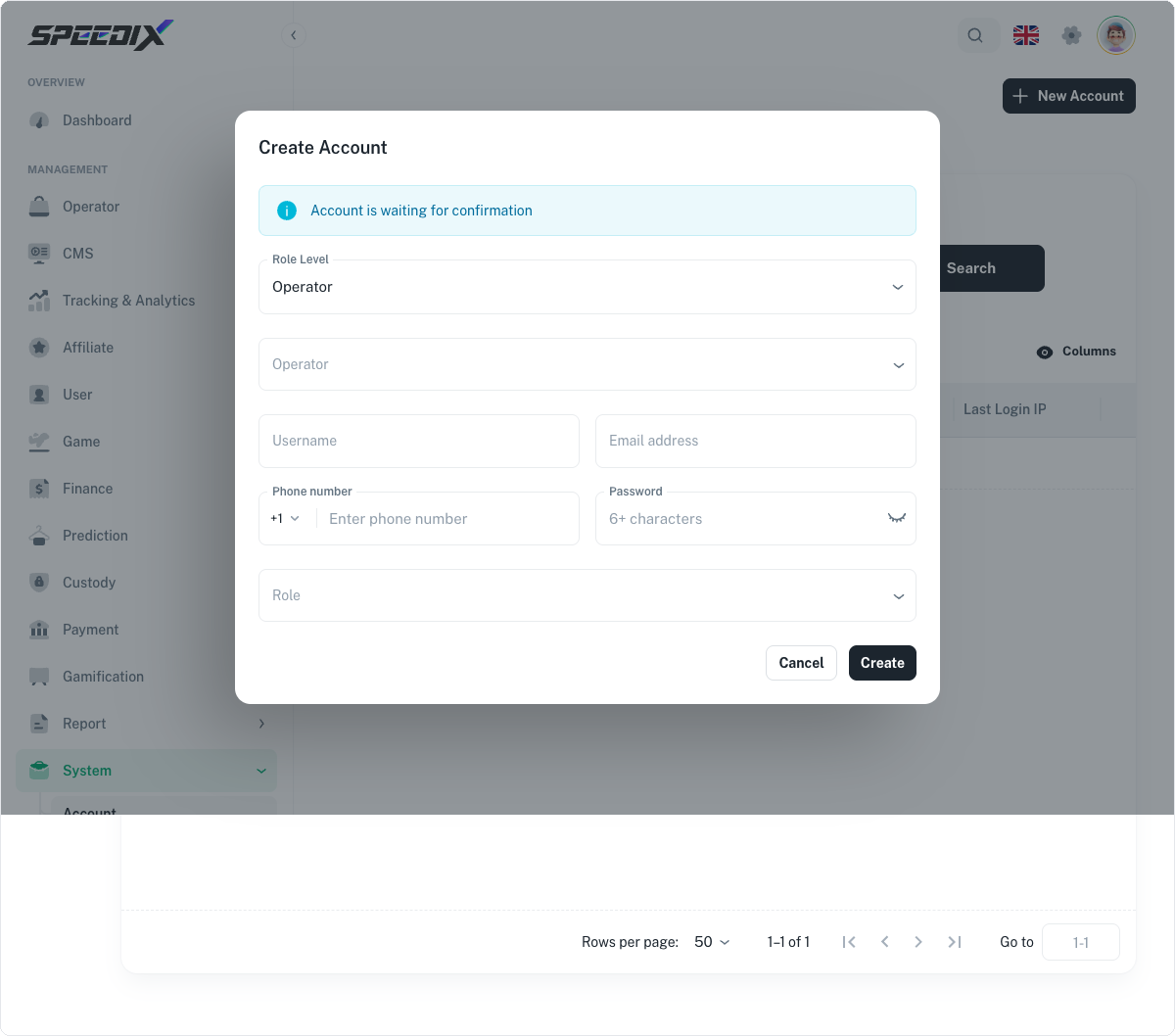
Figure 1.1 — Domains list (this demo Operator has not yet bound a custom domain, list is empty; a default domain was assigned at Operator creation)Figure 1.2 — Add Domain Step 1: select Operator + Domain + ACME Challenge + Custom DomainFigure 2.1 — Root Domains (this demo Operator has not yet bound a root domain)Figure 3.1 — Email Service list (this demo Operator has not yet bound a sending domain)Figure 3.2 — Bind New Domain dialogFigure 4.1 — Role list (Built-In section shows roles available to the current Operator)Figure 4.2 — New Role formFigure 5.1 — Account list (filtered by the top-bar Operator; in this demo 0410co01 has 2 accounts)Figure 5.2 — New Account dialog