Stand up a Company account and create your first Operator site end-to-end. No support ticket, no human review, no waiting — the system handles DNS, admin panel provisioning, and initial data seeding.
This is the first thing an operator owner does on Speedix. UC1
takes you from "I have no account" to "I have a working admin
panel pointing at a live player-facing site" — entirely self-serve,
no support contact required.
What you'll have at the end
A Company account at bo.speedixadm.com — the
organisation-level master account that owns one or more
Operators.
At least one Operator site created under the Company — the
player-facing brand, with its own subdomain, database, CMS, and
payment configuration.
An Admin Panel URL for the new Operator's backoffice
(a *.speedixadm.com address, shown by the wizard and in the
Backoffice URL column of the Operators list), separate from
the player site address.
The ability to log in and start the Phase 1 configuration flow
(CMS, payments, games, etc.).
Heads up. Speedix is a fully self-serve operator platform.
Signup does not involve any human review or sales touch. The
system provisions the subdomain, resolves DNS, instantiates the
admin panel, and seeds initial data automatically.
The four steps
The whole Phase 0 is two stages, four steps:
#
Step
What happens
1
Company registration
Email + password + email verification; system creates the Company account.
2
Choose Site Mode
Individual (you run it) vs. Co-operation (we run it together). Co-operation can later be switched to Individual on request.
System provisions the subdomain, resolves DNS, redirects you into the new backoffice.
Step 1 completes outside the Operator creation wizard. Steps 2–4
happen inside the wizard at Operators → Create.
Key concepts before you start
Company vs Operator
A Company is the organisation-level master account. It
corresponds to your legal entity or brand HQ. A Company can own
many Operators.
Sign up at bo.speedixadm.com.
After signup, the Company account logs into a
Company-level backoffice (not the SYSTEM-level one used by
Speedix internally), and from there can create and manage all
child Operators.
An Operator is the player-facing site. One Operator = one
player website + one isolated data space.
Created by the Company, lives under the Company.
Has its own player database, CMS content, PSP configuration,
and brand identity.
Two Site Modes available: Individual (standalone) and
Co-operation (joint operation).
Individual vs Co-operation
These are the two Site Modes. You choose at step 2 of the
Operator creation wizard. An Operator built in Co-operation
can later be switched to Individual on request (Speedix
performs the switch), keeping the same brand,
players and data. Pick the mode that fits how you want to start.
Individual mode — the standalone-operation route.
You own the players, the brand, and the operating decisions.
Flexible payments: you can use Speedix's system-level PSPs
(comprehensive, ready out of the box) and/or wire up your own
private PSP. The two can run in parallel.
Risk control, operations, and customer support are yours to
run.
Fit: operators who want full control of the brand and the
player relationship, often with existing licences and existing
payment vendors.
Co-operation mode — the joint-operation route.
You share more of the infrastructure with the Speedix platform
(PSPs, risk engine, CMS templates).
Revenue-share commercial arrangement.
Lower lift to launch.
Fit: operators who want to ship fast with a light operating
footprint.
Step 1 — Company account registration
1.1 Open the signup page
In a browser, open https://bo.speedixadm.com/auth/jwt/sign-up.
You'll land on the Speedix Backoffice signup form.
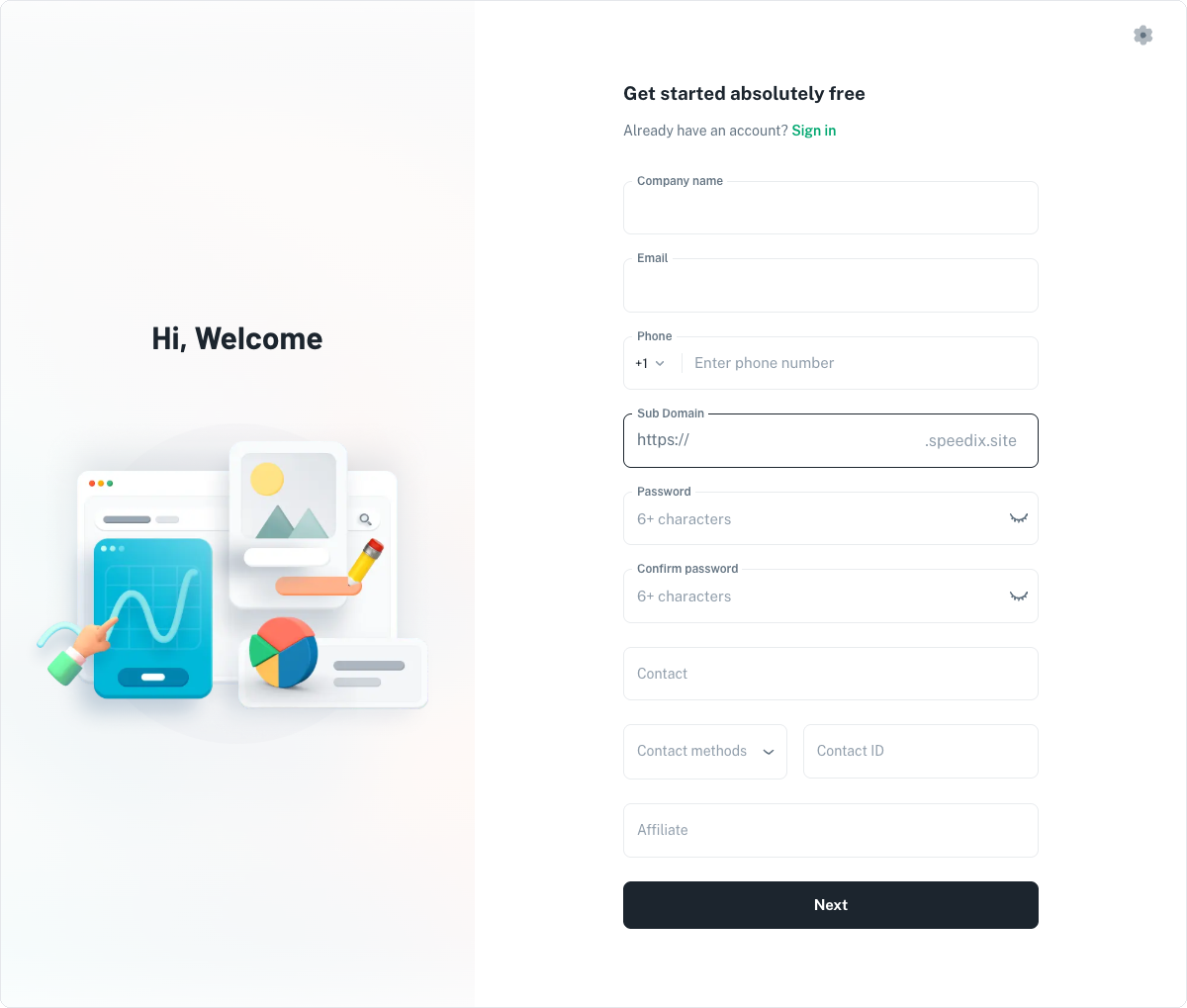
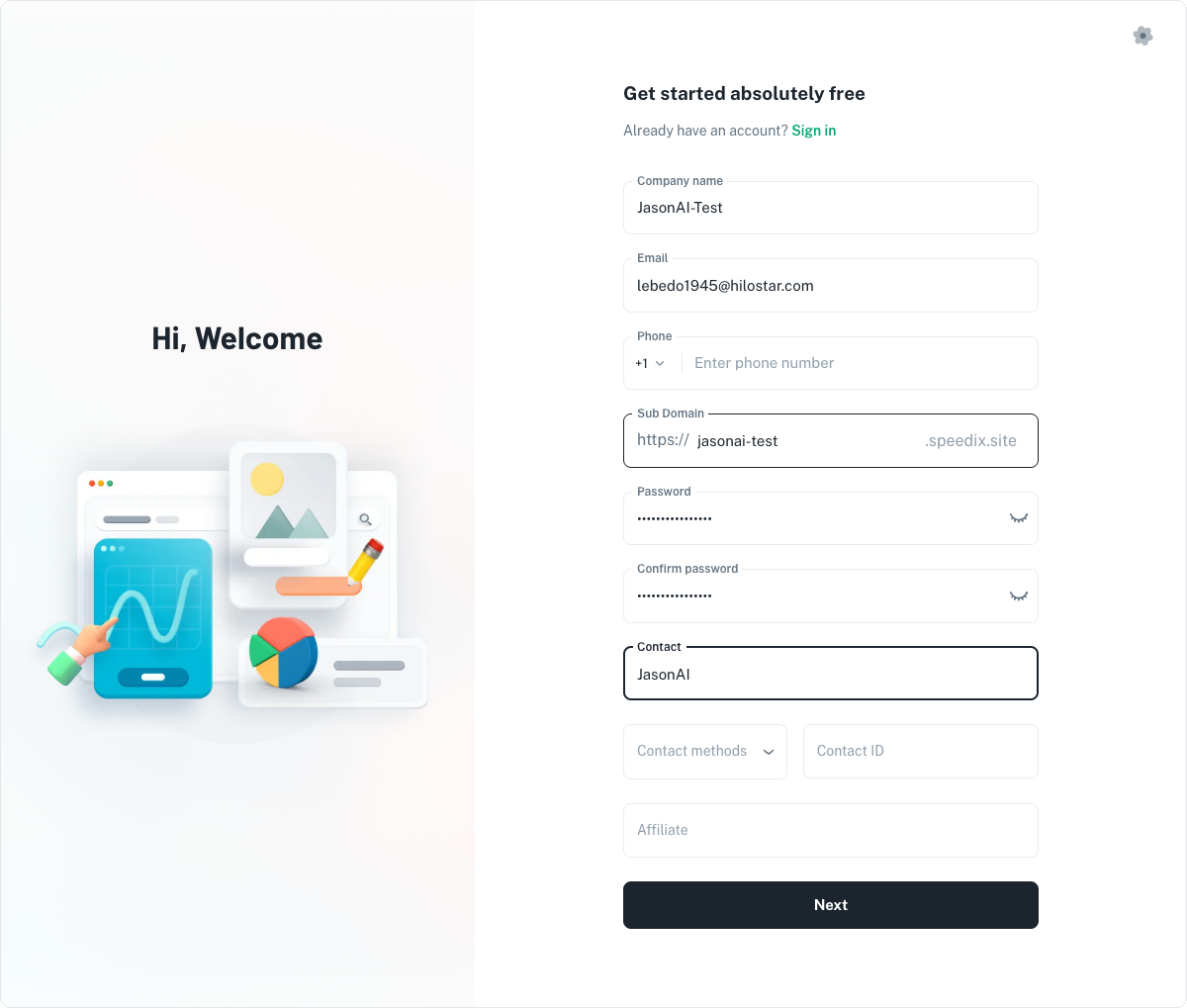
1.2 Fill in the registration form
Field
Notes
Email
Used as your login identifier and for verification. Use a working inbox you control.
Password
At least 8 characters. Treat it like a production password.
Company name
The display name of your organisation. Can be edited later.
Country
Country of incorporation.
Submit. The system creates the Company account in a "pending
verification" state.
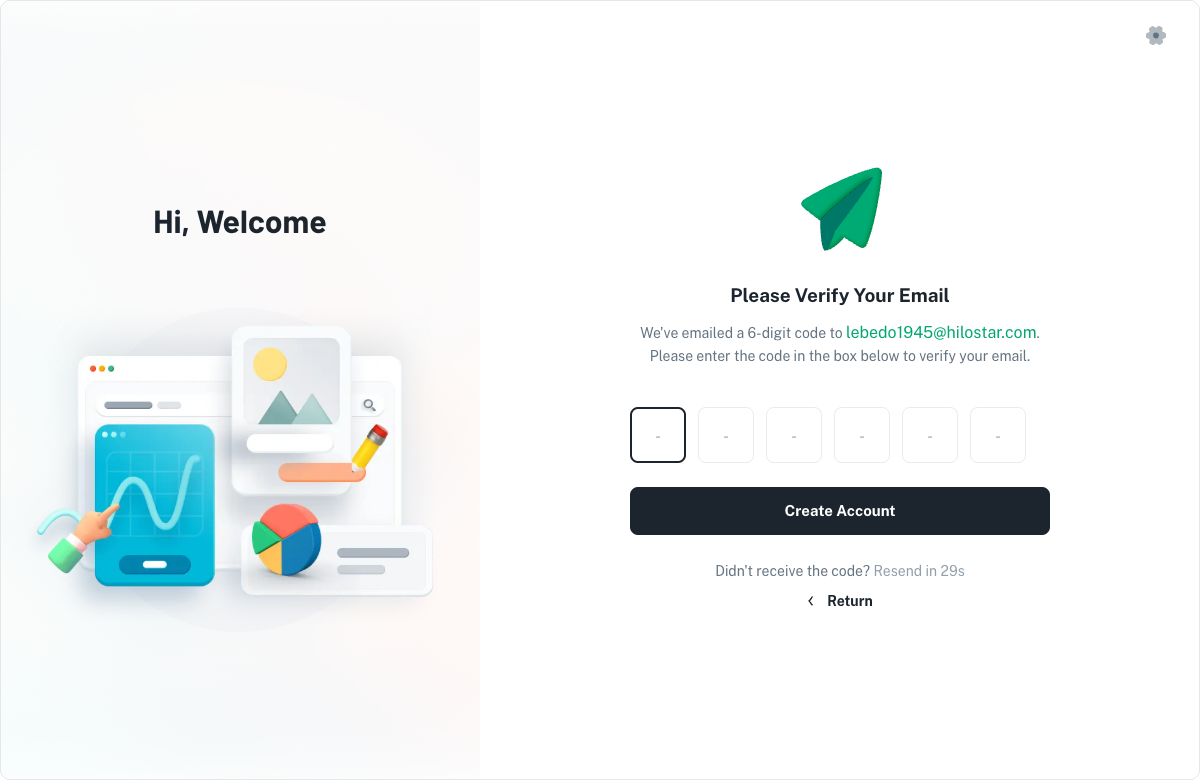
1.3 Verify the email
Within a minute or two, you'll get a verification email.
Click the link. Lands you in the logged-in Company backoffice.
If you don't see the email: check spam first; if still nothing,
use Resend verification on the login page.
Verification links expire after 24 hours.
1.4 Log in to the Company backoffice
You're now in. The default view is the Company-level dashboard
with a single empty placeholder where Operators will go.
Step 2 — Operator creation
2.1 Open the Create Operator wizard
From the left nav: Operators → Create. The wizard opens to
the Site Mode step.
2.2 Choose Site Mode
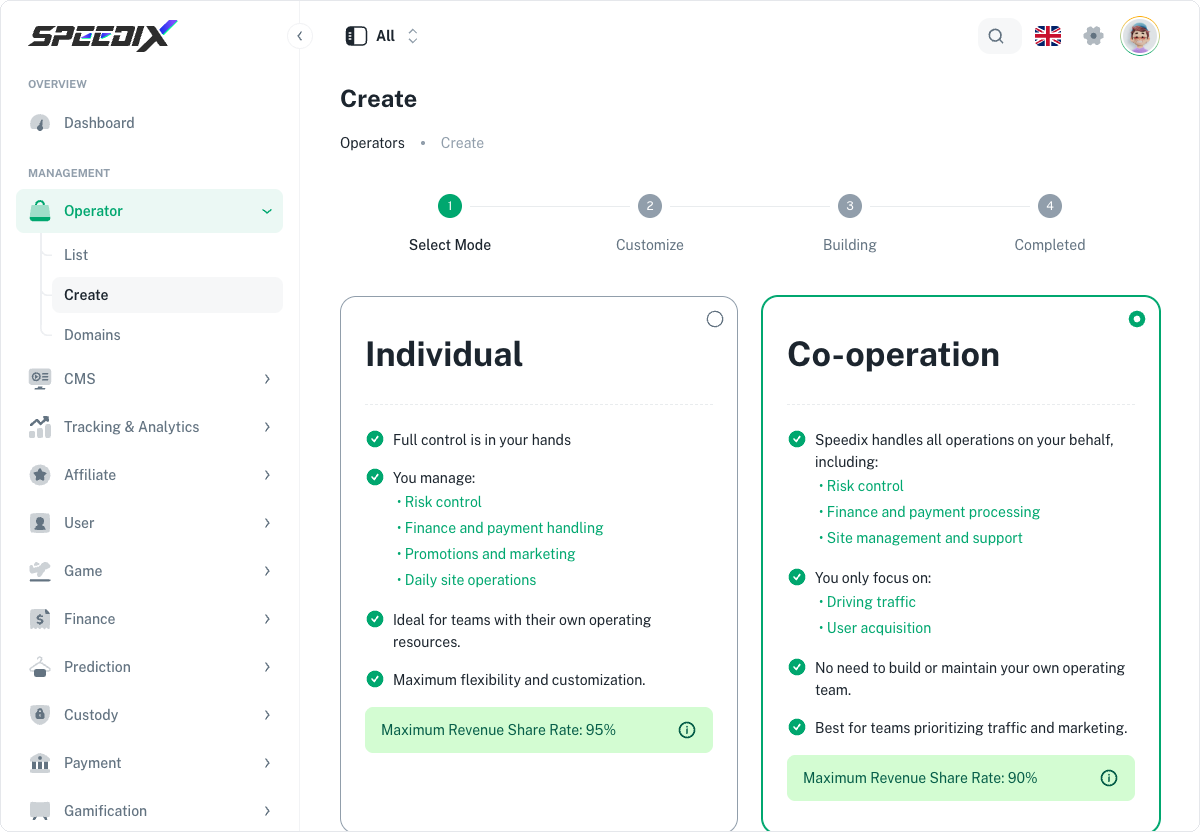
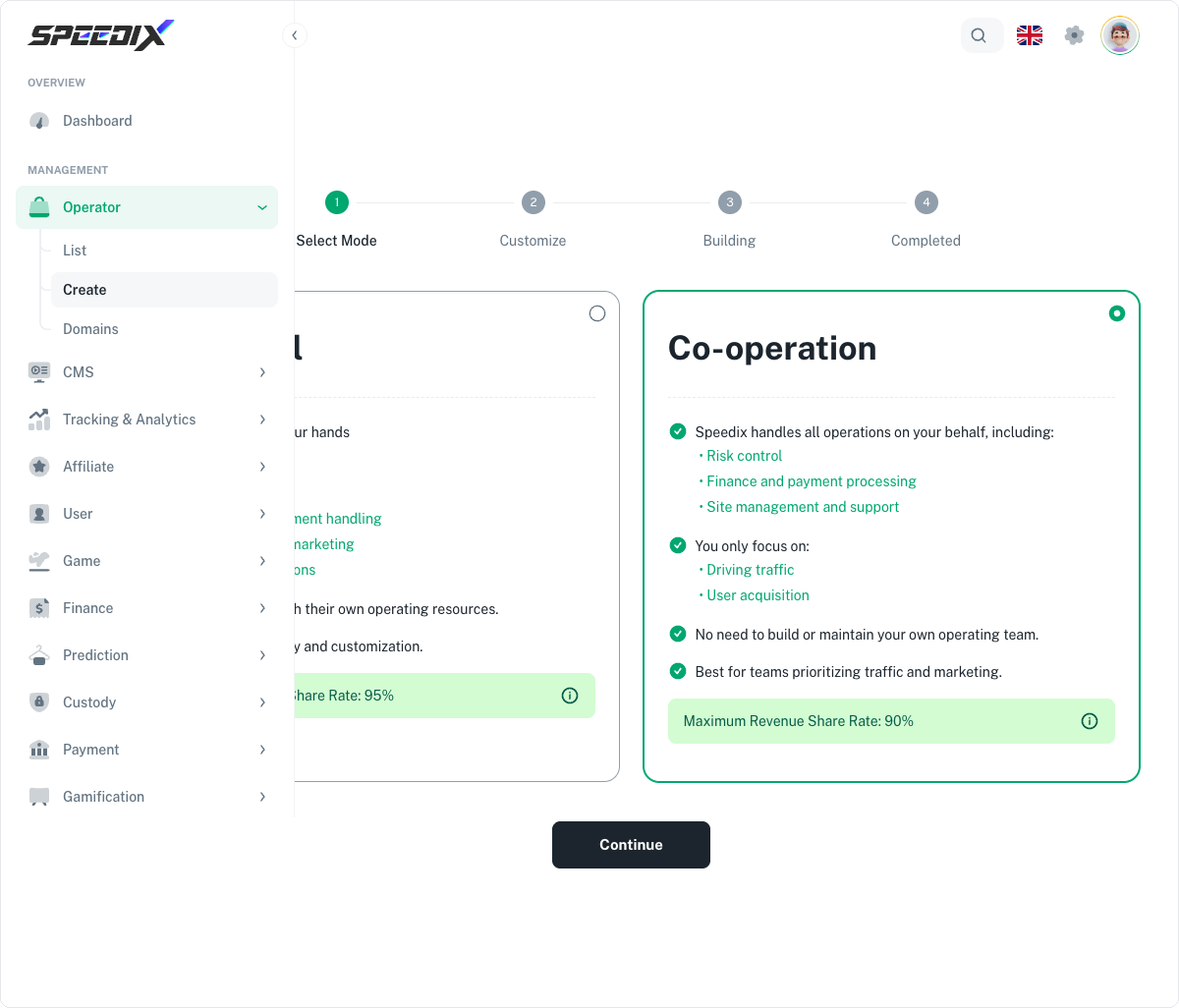
Two cards: Individual and Co-operation. Read the
"Individual vs Co-operation" section above carefully before
choosing. Co-operation can be switched to Individual later, on request.
For this walkthrough we'll pick Individual.
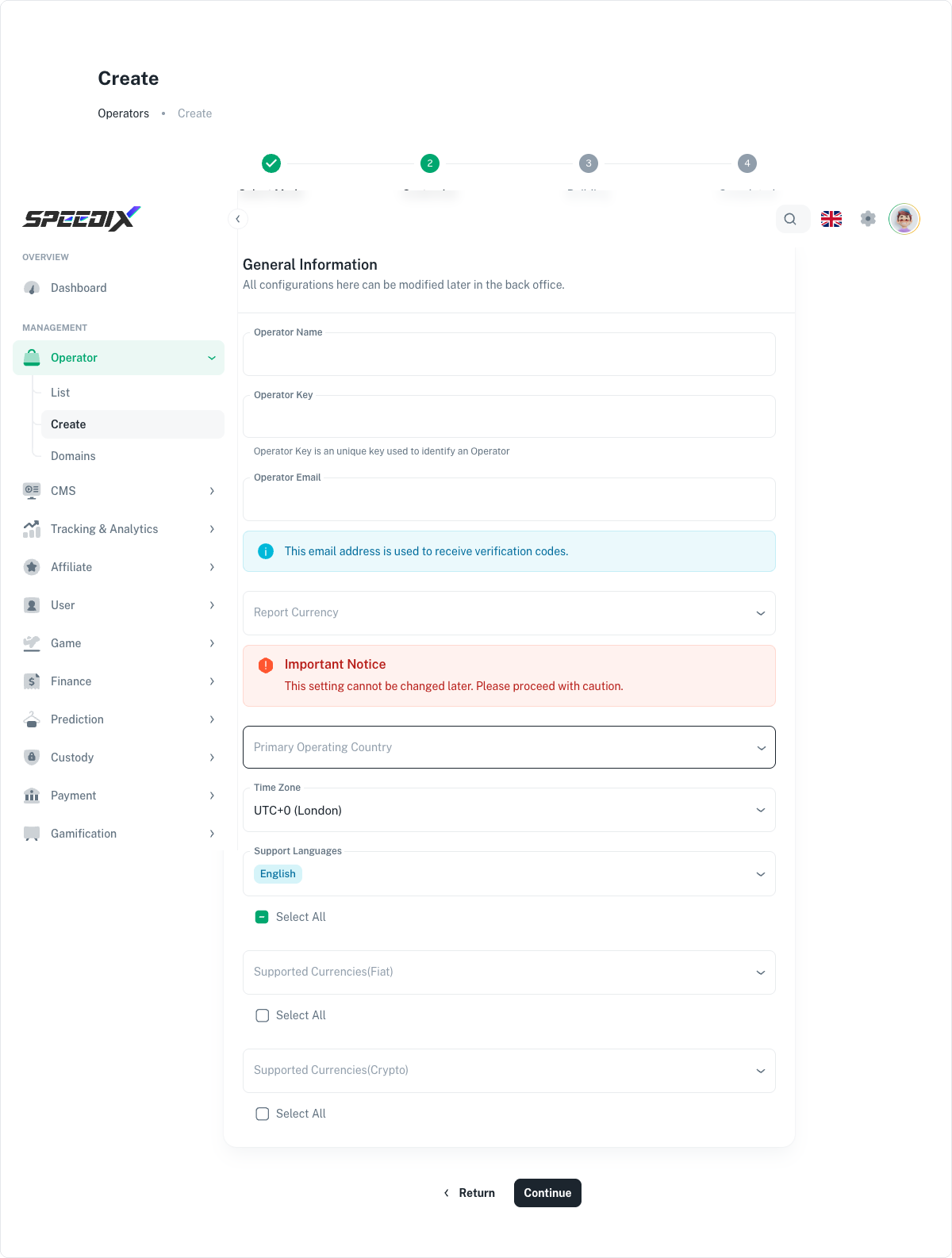
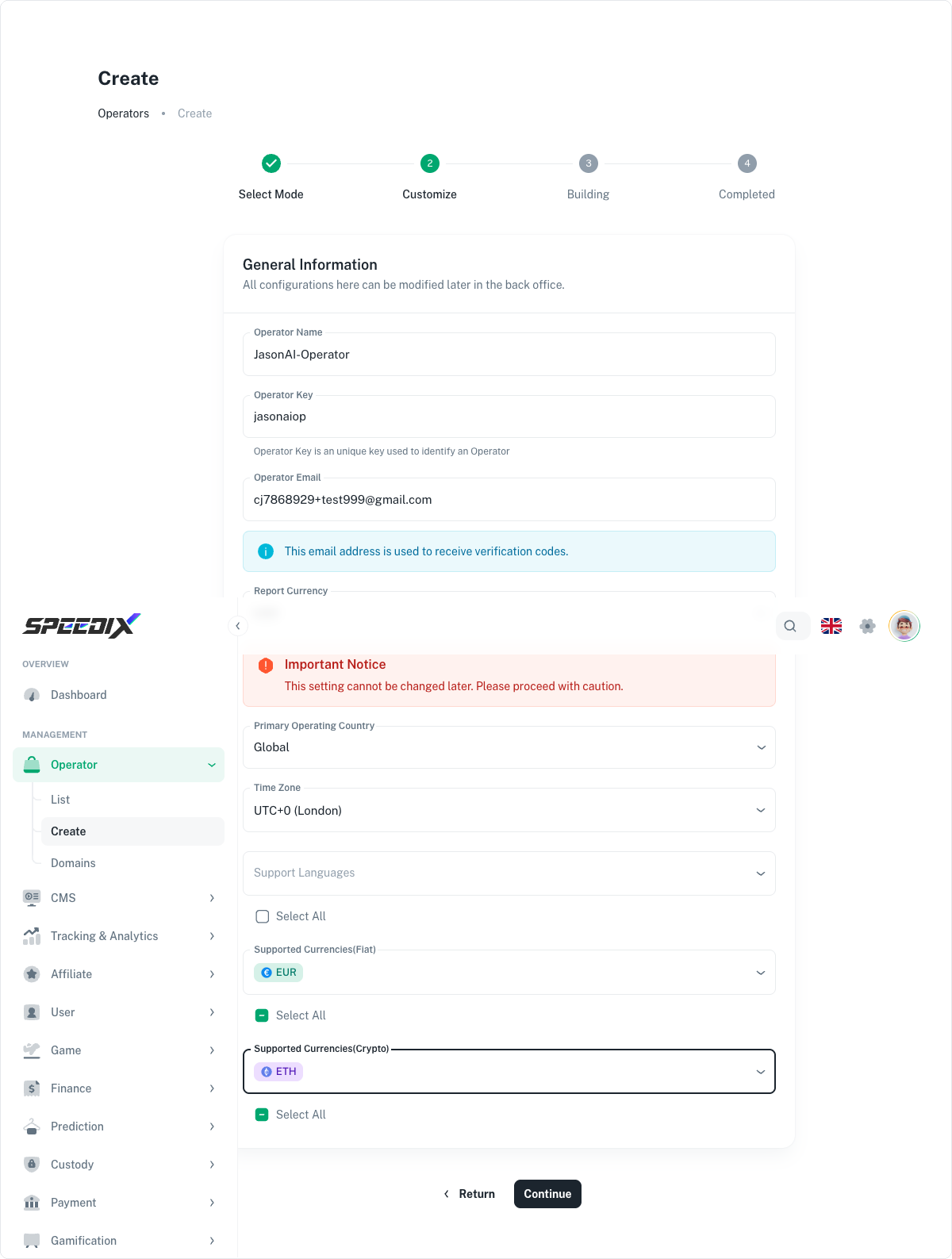
2.3 Customise the Operator
Fill the customisation step:
Field
Notes
Operator name
The brand name shown to players (header, emails, T&Cs).
Subdomain
Used for the player site on a Speedix-assigned player domain. Lowercase, hyphens allowed, no spaces. Must be unique.
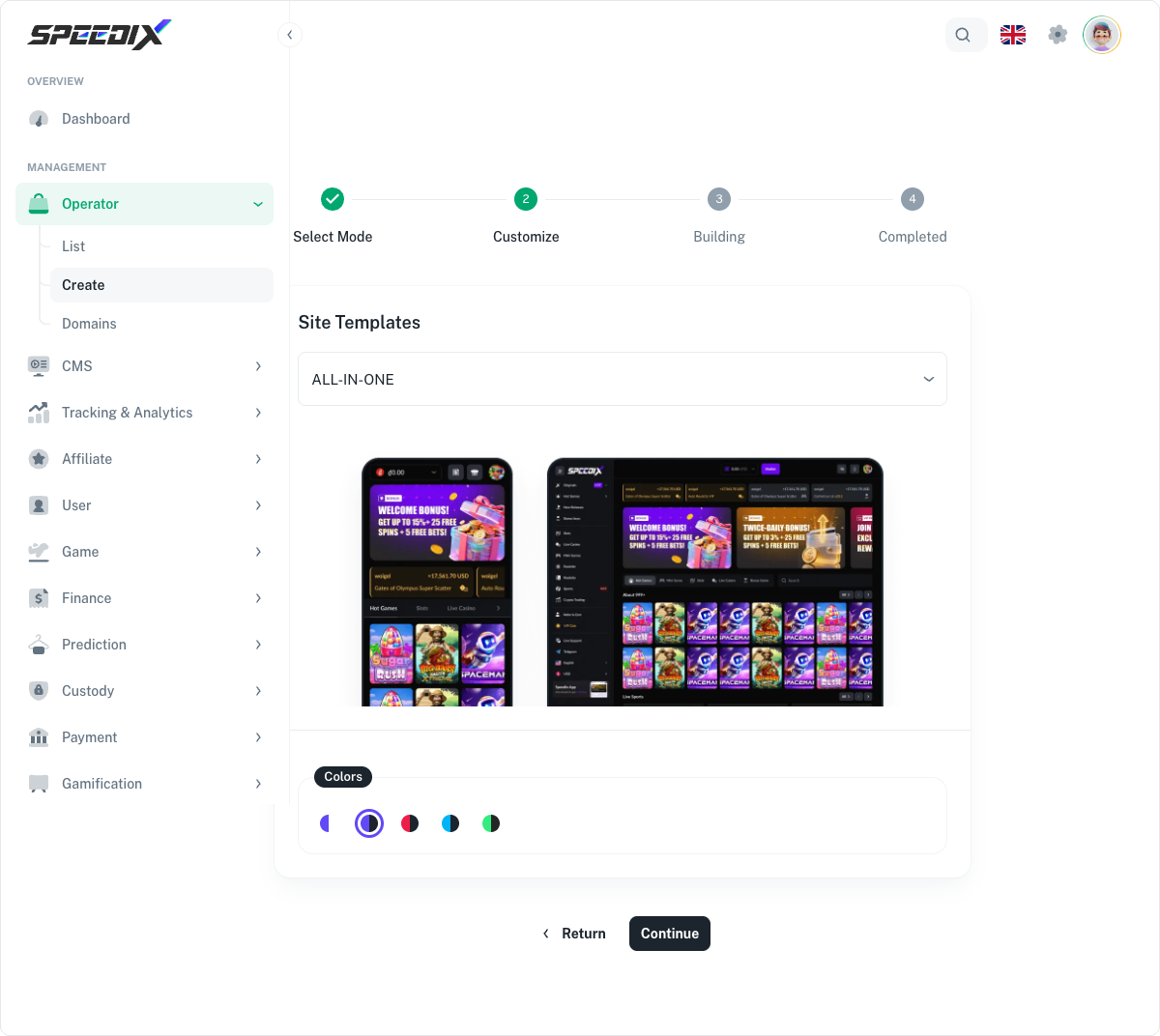
Template
Pick from the available player frontend templates. Each template covers a different category mix (casino-first, sport-first, hybrid).
Primary brand colour
The hex value used for buttons, links, and accents.
Supported currencies
Pick the fiat and crypto currencies the Operator will accept and display. Can be edited later.
Default language
Player frontend default.
Timezone
Used for reporting, scheduled promotions, audit logs.
Submit.
2.4 Building
The system goes into the build phase. You'll see a progress
indicator with substeps:
Provisioning — allocating database, Redis namespace, S3
buckets for the new Operator.
DNS — Cloudflare Custom Hostname registration and DNS
propagation for the subdomain.
Admin panel — instantiating the backoffice for the new
Operator.
Seeding — installing default CMS content, default games
tags, default role definitions.
Typical wall time: 3 to 8 minutes. The wizard updates in real
time; you can leave the page and come back.
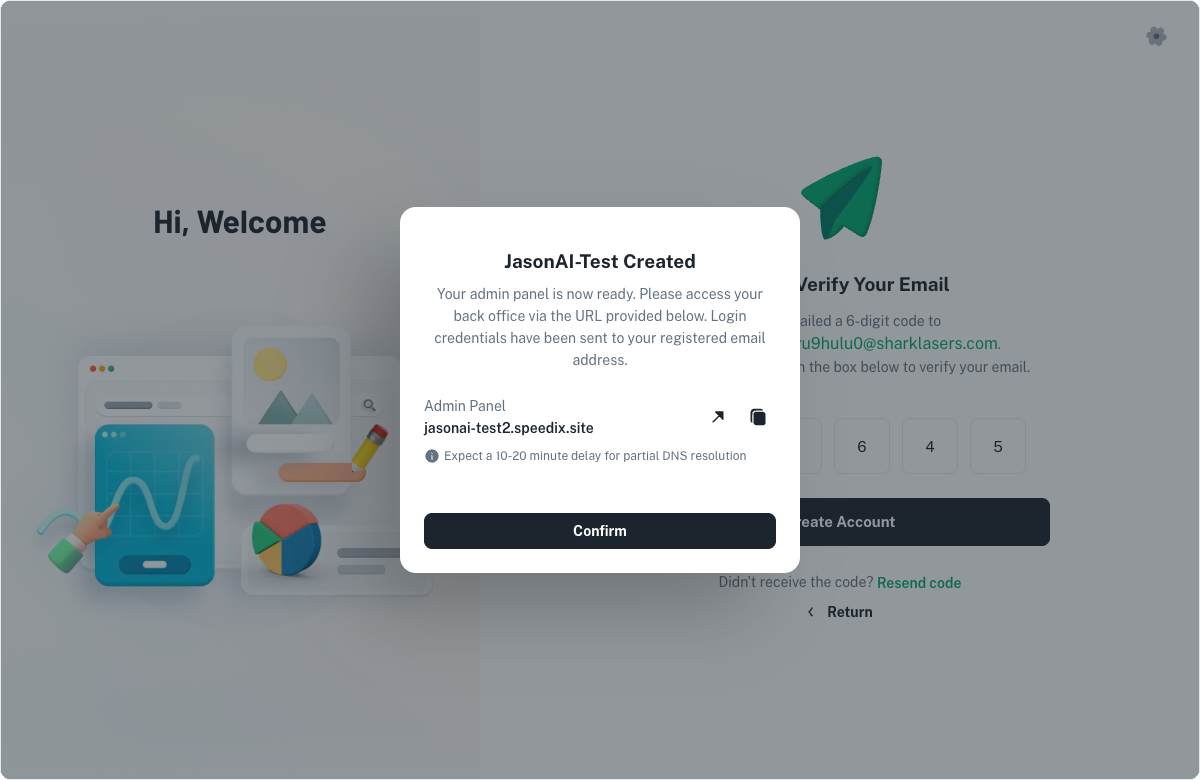
2.5 Done — first login
When the build finishes, the wizard shows the new Admin Panel URL
(a *.speedixadm.com address; also listed later under Backoffice
URL in the Operators list) and a
Continue to backoffice button.
Click it. You're now in your new Operator's backoffice, ready to
start UC2 (Site infrastructure).
Field reference
Where
Field
Type
Notes
Signup
Email
email
Must be unique across Speedix.
Signup
Password
string ≥ 8 chars
One-way; use a password manager.
Signup
Company name
string
Displayed across the Company backoffice.
Operator wizard
Site Mode
enum
Individual / Co-operation. Co-operation can be switched to Individual later, on request.
Operator wizard
Operator name
string
Player-facing brand.
Operator wizard
Subdomain
slug
Must match [a-z0-9-]+; must be unique.
Operator wizard
Template
enum
Player frontend layout choice.
Operator wizard
Brand colour
hex
E.g. #2233ED.
Operator wizard
Currencies
array
Pick 1+ from the supported list.
Operator wizard
Language
enum
Default player UI language.
Operator wizard
Timezone
IANA
E.g. Asia/Singapore.
Common pitfalls
Choosing the wrong Site Mode. Re-read the section above.
If you're unsure, start with Co-operation: Speedix can switch it
to Individual later on request without rebuilding the Operator or losing
player data. Switching means taking over VIP, bonuses,
promotions and withdrawal approval, and funding the $2,000
Individual prepayment.
Subdomain collision. If your first pick is taken, the
wizard rejects it. Pick something distinctive to your brand;
short and memorable wins. Subdomain can't be changed later
without an Operator rebuild.
Currency overcommit. Enabling too many currencies at signup
inflates the cashier UI and creates more PSP setup work later.
Pick the 1–3 you'll actually launch with; add more in UC4a.
Wrong timezone. Affects reporting and scheduled promotions.
Use the timezone of your operations team, not necessarily of
your players.
Email verification expiry. The verification link is good
for 24 hours. If it's expired, use the resend flow on the
login page.
Screenshots
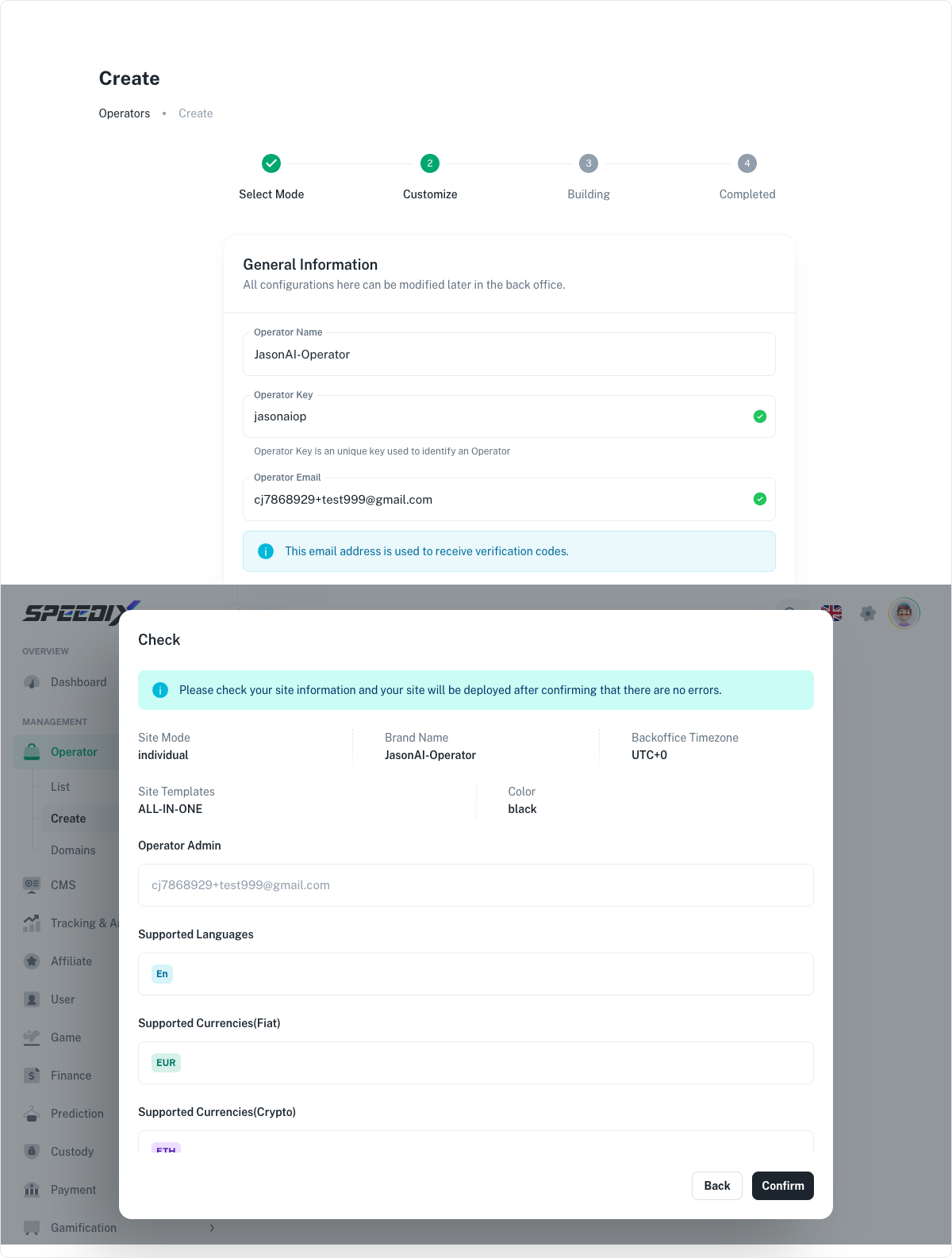
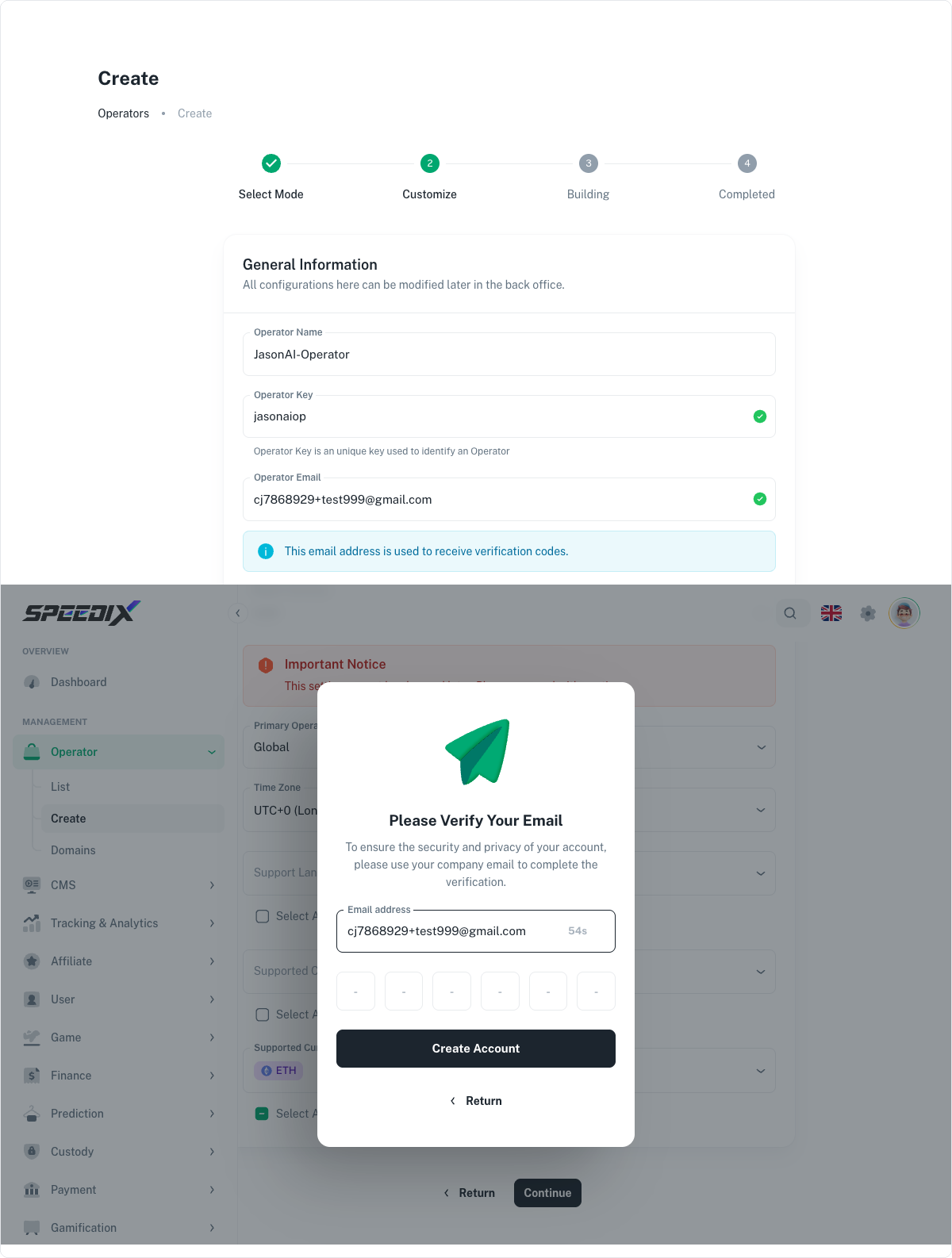
Figure 1.1 — Speedix Backoffice signup page (blank state)Figure 1.2 — Form filled outFigure 1.3 — 6-digit verification code inputFigure 1.4 — Signup success message, showing the dedicated Admin Panel URLFigure 1.5 — First login auto-redirects to step 1 of the Operator Create wizardFigure 2.1 — Choose Individual (standalone site) or Co-operation (co-branded site)Figure 2.2 — Site template (ALL-IN-ONE / single-product) and primary brand color selectionFigure 2.3a — General Information form, initial blank stateFigure 2.3b — All fields filled out (this demo: Global / UTC+0 / English / EUR / ETH)Figure 2.4 — Check dialog summarizing the site's key parametersFigure 2.5 — Please Verify Your Email: 6-digit code + Create Account button